Console Redfish User Guide
Redfish API is a Pre-Release Feature
Console's Redfish API (/redfish/v1) is a Pre-Release Feature and is subject to change. It is not production ready, and its API and behavior may change without notice. It is available in pre-release builds tagged -redfish-preview (for example, v1.46.0-redfish-preview.1) under Releases.
Use Console's Redfish API to discover and manage Intel AMT devices, including remote power control and KVM/SOL redirection. Redfish is a standardized REST API for device management over HTTP. See the DMTF Redfish standards.
What You Will Do
In this tutorial, you will:
- Download and run the Console Release supporting Redfish endpoints
- Configure and execute the Console application
- Query and test Redfish endpoints using curl commands or the DMTF Redfish Tool
- Start KVM and Serial-over-LAN (SOL) redirection sessions through Redfish
- Troubleshoot common issues
Supported Redfish Features
The Console implements the following Redfish API v1.19.0 features for remote power management and fleet management.
Service Discovery:
- Service Root (
/redfish/v1/) - Entry point for the Redfish service - OData Service Document (
/redfish/v1/odata) - List of available entity sets - Metadata Document (
/redfish/v1/$metadata) - OData CSDL schema definition
Computer System Management:
- Systems Collection (
/redfish/v1/Systems) - List all managed Intel AMT devices - System Information (
/redfish/v1/Systems/{id}) - Retrieve detailed system properties - Power Control Actions (
/redfish/v1/Systems/{id}/Actions/ComputerSystem.Reset) - Remote power management
KVM and SOL Redirection (Redfish Control Plane):
- KVM State and Service Control -
GraphicalConsolefields onGET/PATCH /redfish/v1/Systems/{id} - SOL State and Service Control -
SerialConsolefields onGET/PATCH /redfish/v1/Systems/{id} - KVM Consent Actions (OEM):
POST /redfish/v1/Systems/{id}/Actions/Oem/IntelComputerSystem.RequestKVMConsentPOST /redfish/v1/Systems/{id}/Actions/Oem/IntelComputerSystem.SubmitKVMConsentCodePOST /redfish/v1/Systems/{id}/Actions/Oem/IntelComputerSystem.CancelKVMConsent- SOL Consent Actions (OEM):
POST /redfish/v1/Systems/{id}/Actions/Oem/IntelComputerSystem.RequestSolConsentPOST /redfish/v1/Systems/{id}/Actions/Oem/IntelComputerSystem.SubmitSolConsentCodePOST /redfish/v1/Systems/{id}/Actions/Oem/IntelComputerSystem.CancelSolConsent- Redirection Token Action (OEM):
POST /redfish/v1/Systems/{id}/Actions/Oem/IntelComputerSystem.GenerateRedirectionToken
Session Management:
- Session Service (
/redfish/v1/SessionService) - Session service metadata, includingSessionTimeout - Sessions Collection (
/redfish/v1/SessionService/Sessions) - List all active sessions - Create Session (
POST /redfish/v1/SessionService/Sessions) - Authenticate and obtain anX-Auth-Token - Session Details (
GET /redfish/v1/SessionService/Sessions/{id}) - Retrieve a single session - Delete Session (
DELETE /redfish/v1/SessionService/Sessions/{id}) - Log out and invalidate the token
Standards Compliance:
- Redfish API v1.19.0
- OData Version 4.0
- DMTF ComputerSystem v1.26.0 schema
- DMTF SessionService v1.2.0 and Session v1.8.0 schemas
Tutorial Flow
Follow these sections in order:
- Prerequisites - Tools installation
- Download and Configure the Pre-built Redfish Binary - Download and prepare the release package
- Verifying the Redfish Endpoint - Configuration verification and server endpoint validation
- Using the Redfish API through DMTF Redfish Tool - API testing with the official DMTF Redfish tool
- Using the Redfish API through curl commands - API testing with curl commands
- Understanding KVM and SOL State - Control modes and consent status values
- Using UI Toolkit React for KVM and SOL Sessions - Browser-based redirection
- Common Use Cases - End-to-end scripted scenarios
- Error Handling - Status codes and Redfish error payloads
- Troubleshooting - Common issues and solutions
- Additional Documentation Resources - Documentation and reference links
Setup Overview
The following diagram shows how the components connect during this tutorial:
graph TB
    subgraph "Helpdesk Machine"
        A[Console<br/> with Redfish Service<br/>Port 8181]
        B[curl]
        C[Redfish Tool]

        B -.->|API Requests <br/>/redfish/v1/.. <br/>/api/v1/..| A
        C -.->|API Requests <br/>/redfish/v1/..| A
    end

    subgraph "Managed Devices"
        D[Intel AMT Device 1]
        E[Intel AMT Device 2]
        F[Intel AMT Device N]
    end

    A -->|API Requests <br/> WS-MAN API| D
    A -->|API Requests <br/> WS-MAN API| E
    A -->|API Requests <br/> WS-MAN API| F
Components:
- Console: Redfish service running on the helpdesk machine
- curl / Redfish Tool: Command-line clients for testing and interacting with the Redfish API
- Intel AMT Devices: Managed devices with Intel AMT firmware
Prerequisites
Install the following tools before running this tutorial:
-
curl (for API calls) : Comes pre-installed on most operating systems; if not available, install it from the official website (https://curl.se/download.html) or your OS package manager.
-
DMTF Redfish Tool (for Redfish CLI testing) : Repository and install guidance: https://github.com/DMTF/Redfishtool. The version used in this tutorial is 1.1.5, installable with
pip install redfishtool. -
jq (for JSON filtering/pretty-printing in non-table examples) : Install it from your OS package manager (for example,
sudo apt-get install jqon Debian/Ubuntu,brew install jqon macOS, orchoco install jq/winget install jqlang.jqon Windows) or from the official repository at https://jqlang.github.io/jq/.
Download and Configure the Pre-built Redfish Binary
Download the pre-built release package from https://github.com/device-management-toolkit/console/releases. Use a release that includes the Redfish functionality you want to test, then extract the archive.
After downloading and extracting the Redfish binary, continue with the Enterprise setup guide: Configuration and follow the instructions to run the Console application and Add Devices. Once the console is running, you can proceed to test the Redfish API using either curl commands or the DMTF Redfish Tool as described in the next sections.
Note
Configure the Console application to run with TLS enabled before testing Redfish endpoints. Redfish access in this guide expects HTTPS.
Setting Your Connection Values
Every example in this guide uses the same placeholders. Console listens on port 8181 by default, so a local install is usually reachable at https://localhost:8181.
| Placeholder | Variable used in the examples | Meaning |
|---|---|---|
<console_host_or_ip> |
CONSOLE_HOST |
Host or IP where Console is running (for example, localhost) |
<console_port> |
CONSOLE_PORT |
Console HTTP port (default 8181, configurable via HTTP_PORT) |
<admin-user-name> / <admin-password> |
ADMIN_USER / ADMIN_PASSWORD |
Console admin credentials you configured during setup |
<system-id> |
SYSTEM_ID |
Device GUID of a managed Intel AMT device, taken from the Systems collection |
Rather than retyping these values, export them once in your shell. Every curl and redfishtool example in this guide reads them, so the commands can be copied and run as-is:
export CONSOLE_HOST="localhost"
export CONSOLE_PORT="8181"
export ADMIN_USER="<admin-user-name>"
export ADMIN_PASSWORD="<admin-password>"
export SYSTEM_ID="<system-id>"
Note
The example above uses Linux shell syntax. The same variables work on Windows — set them in PowerShell instead, and the curl commands are otherwise unchanged:
$CONSOLE_HOST    = "localhost"
$CONSOLE_PORT    = "8181"
$ADMIN_USER      = "<admin-user-name>"
$ADMIN_PASSWORD  = "<admin-password>"
$SYSTEM_ID       = "<system-id>"
The examples use the ${VARIABLE} form, which both bash and PowerShell expand the same way.
You can fill in SYSTEM_ID after you list the Systems collection for the first time — see Get Systems Collection.
Verifying the Redfish Endpoint
Test that the Redfish Endpoint is running:
Note
On Windows, PowerShell has a built-in curl alias for Invoke-WebRequest. To use the native curl executable instead, either use curl.exe explicitly in commands, or remove the alias by running Remove-Item Alias:curl in your PowerShell session.
# Check if the server is listening (use -k to ignore self-signed certificate, -s for silent mode)
curl.exe -sk https://${CONSOLE_HOST}:${CONSOLE_PORT}/redfish/v1/ | jq
# Check if the server is listening (use -k to ignore self-signed certificate, -s for silent mode)
curl -sk https://${CONSOLE_HOST}:${CONSOLE_PORT}/redfish/v1/ | jq
Reference response:
{
  "@odata.context": "/redfish/v1/$metadata#ServiceRoot.ServiceRoot",
  "@odata.id": "/redfish/v1",
  "@odata.type": "#ServiceRoot.v1_19_0.ServiceRoot",
  "Id": "RootService",
  "Name": "Root Service",
  "Product": "Device Management Toolkit - Redfish Service",
  "RedfishVersion": "1.19.0",
  "Systems": {
    "@odata.id": "/redfish/v1/Systems"
  },
  "UUID": "11111111-1111-1111-1111-111111111111",
  "Vendor": "Device Management Toolkit"
}
Reference log on the Console:
{"level":"info","time":"2025-12-06T15:22:40+05:30","caller":"/opt/console/pkg/logger/adapters.go:29","message":"[GIN] 2025/12/06 - 15:22:40 | 200 | 795.431µs | <client-ip> | GET \"/redfish/v1/\""}
Note
If you receive connection errors or no response check for any proxy settings on your machine that may be interfering with local connections. If you are not using a proxy, ensure that no proxy environment variables are set (e.g., HTTP_PROXY, HTTPS_PROXY, NO_PROXY).
Using the Redfish API through DMTF Redfish Tool
About DMTF Redfish Tool
The DMTF Redfish Tool is the official reference implementation tool from the Distributed Management Task Force (DMTF) for interacting with Redfish APIs. It provides:
- Simplified command syntax for Redfish operations
- Automatic JSON formatting and pretty-printing
- Built-in authentication handling
- Support for HTTP and HTTPS connections
- Comprehensive coverage of Redfish API operations
Official Repository: https://github.com/DMTF/Redfishtool
Note
If you haven't already installed the Redfish tool, please refer to Prerequisites.
Basic Usage
The general syntax for the Redfish tool is:
redfishtool [options] <command> [command-options]
Common options:
-r <host>or--rhost <host>: Specify the Console service host-u <user>or--user <user>: Console Username for authentication-p <password>or--password <password>: Console Password for authentication-S Alwaysor--Secure=Always: Always use HTTPS. Required for Console, which serves Redfish over TLS-I <device-guid>or--Id <device-guid>: Select a specific member of a collection by itsId. The examples pass${SYSTEM_ID}here-T <seconds>: Request timeout. AMT operations can be slow, so the examples use-T 30-vor--verbose: Enable verbose output
Using Redfish Tool with Console
The following examples demonstrate how to use the Redfish tool with Console for all common Redfish operations. These correspond to the same scenarios covered in the curl commands section.
Note
Like the curl examples, these commands read the CONSOLE_HOST, CONSOLE_PORT, ADMIN_USER, ADMIN_PASSWORD, and SYSTEM_ID variables. Export them once as shown in Setting Your Connection Values — that example uses Linux shell syntax, and the equivalent PowerShell $env: assignments work the same way on Windows — then the commands below can be copied and run unchanged.
Get Service Root
Description: Retrieve the Redfish service root document.
Requires Authentication: No
This command displays the service root with available API endpoints and service information.
redfishtool -r ${CONSOLE_HOST}:${CONSOLE_PORT} -S Always root
Reference Successful Response:
{
    "@odata.context": "/redfish/v1/$metadata#ServiceRoot.ServiceRoot",
    "@odata.id": "/redfish/v1",
    "@odata.type": "#ServiceRoot.v1_19_0.ServiceRoot",
    "Id": "RootService",
    "Links": {
        "Sessions": {
            "@odata.id": "/redfish/v1/SessionService/Sessions"
        }
    },
    "Name": "Root Service",
    "Product": "Device Management Toolkit - Redfish Service",
    "RedfishVersion": "1.19.0",
    "Systems": {
        "@odata.id": "/redfish/v1/Systems"
    },
    "UUID": "11111111-1111-1111-1111-111111111111",
    "Vendor": "Device Management Toolkit",
    "SessionService": {
        "@odata.id": "/redfish/v1/SessionService"
    }
}
What to verify:
- ✓ Response has
@odata.context,@odata.id,@odata.type - ✓ Contains links to Systems collections and Session Service
- ✓ Header
OData-Version: 4.0is present - ✓
RedfishVersionis1.19.0 - ✓
VendorisDevice Management Toolkit - ✓
UUIDis a valid GUID and would be the same on subsequent requests
Get OData Service Document
Description: Retrieve the OData service document that describes available entity sets.
Requires Authentication: No
redfishtool -r ${CONSOLE_HOST}:${CONSOLE_PORT} -S Always odata
Reference Successful Response:
{
    "@odata.context": "/redfish/v1/$metadata#ServiceRoot.ServiceRoot",
    "value": [
        {
            "name": "SessionService",
            "kind": "Singleton",
            "url": "/redfish/v1/SessionService"
        },
        {
            "name": "Systems",
            "kind": "Singleton",
            "url": "/redfish/v1/Systems"
        }
    ]
}
What to verify:
- ✓ Response contains
valuearray - ✓ Entity sets are listed with
name,kind, andurl
Get Metadata Document
Description: Retrieve the Redfish metadata document in XML format (OData CSDL schema).
Requires Authentication: No
redfishtool -r ${CONSOLE_HOST}:${CONSOLE_PORT} -S Always metadata
Reference Successful Response:
<?xml version="1.0" encoding="UTF-8"?>
<edmx:Edmx xmlns:edmx="http://docs.oasis-open.org/odata/ns/edmx" Version="4.0">
    <edmx:Reference Uri="http://redfish.dmtf.org/schemas/v1/ActionInfo_v1.xml">
        <edmx:Include Namespace="ActionInfo"/>
        <edmx:Include Namespace="ActionInfo.1_5_0"/>
    </edmx:Reference>
    <edmx:Reference Uri="http://redfish.dmtf.org/schemas/v1/ComputerSystemCollection_v1.xml">
        <edmx:Include Namespace="ComputerSystemCollection"/>
    </edmx:Reference>
    <edmx:Reference Uri="http://redfish.dmtf.org/schemas/v1/ComputerSystem_v1.xml">
        <edmx:Include Namespace="ComputerSystem"/>
        <edmx:Include Namespace="ComputerSystem.1_26_0"/>
    </edmx:Reference>
    <edmx:Reference Uri="http://redfish.dmtf.org/schemas/v1/Message_v1.xml">
        <edmx:Include Namespace="Message"/>
        <edmx:Include Namespace="Message.1_2_1"/>
    </edmx:Reference>
    <edmx:Reference Uri="http://redfish.dmtf.org/schemas/v1/ResolutionStep_v1.xml">
        <edmx:Include Namespace="ResolutionStep"/>
        <edmx:Include Namespace="ResolutionStep.1_0_1"/>
    </edmx:Reference>
    <edmx:Reference Uri="http://redfish.dmtf.org/schemas/v1/Resource_v1.xml">
        <edmx:Include Namespace="Resource"/>
        <edmx:Include Namespace="Resource.1_23_0"/>
    </edmx:Reference>
    <edmx:Reference Uri="http://redfish.dmtf.org/schemas/v1/ServiceRoot_v1.xml">
        <edmx:Include Namespace="ServiceRoot"/>
        <edmx:Include Namespace="ServiceRoot.1_19_0"/>
    </edmx:Reference>
    <edmx:Reference Uri="http://redfish.dmtf.org/schemas/v1/SessionCollection_v1.xml">
        <edmx:Include Namespace="SessionCollection"/>
    </edmx:Reference>
    <edmx:Reference Uri="http://redfish.dmtf.org/schemas/v1/SessionService_v1.xml">
        <edmx:Include Namespace="SessionService"/>
        <edmx:Include Namespace="SessionService.1_2_0"/>
    </edmx:Reference>
    <edmx:Reference Uri="http://redfish.dmtf.org/schemas/v1/Session_v1.xml">
        <edmx:Include Namespace="Session"/>
        <edmx:Include Namespace="Session.1_8_0"/>
    </edmx:Reference>
    <edmx:DataServices>
        <Schema xmlns="http://docs.oasis-open.org/odata/ns/edm" Namespace="Service">
            <EntityContainer Name="Service" Extends="ServiceRoot.v1_19_0.ServiceContainer"/>
        </Schema>
    </edmx:DataServices>
</edmx:Edmx>
What to verify:
- ✓ Content-Type is
application/xmlortext/xml - ✓ Valid XML structure with
<edmx:Edmx>root element - ✓ Contains schema definitions for Redfish resources
Get Systems Collection
Description: Retrieve the collection of computer systems managed by the console.
Requires Authentication: Yes
This displays all systems managed by the Console.
redfishtool -r ${CONSOLE_HOST}:${CONSOLE_PORT} -u "${ADMIN_USER}" -p "${ADMIN_PASSWORD}" -S Always Systems
Reference Successful Response:
{
  "@odata.context": "/redfish/v1/$metadata#ComputerSystemCollection.ComputerSystemCollection",
  "@odata.id": "/redfish/v1/Systems",
  "@odata.type": "#ComputerSystemCollection.ComputerSystemCollection",
  "Description": "Collection of Computer Systems",
  "Members": [
    {
      "@odata.id": "/redfish/v1/Systems/device-guid-12345"
    }
  ],
  "Members@odata.count": 1,
  "Name": "Computer System Collection"
}
What to verify:
- ✓ Response contains
Membersarray - ✓
Members@odata.countmatches number of devices - ✓ Each member has
@odata.idlink
Get Specific System Details
Description: Retrieve detailed information about a specific computer system.
Requires Authentication: Yes
SYSTEM_ID holds the system identifier (device GUID) taken from the Systems collection.
redfishtool -r ${CONSOLE_HOST}:${CONSOLE_PORT} -u "${ADMIN_USER}" -p "${ADMIN_PASSWORD}" -S Always Systems -I ${SYSTEM_ID} -T 30
Reference Successful Response:
{
  "@odata.context": "/redfish/v1/$metadata#ComputerSystem.ComputerSystem",
  "@odata.id": "/redfish/v1/Systems/device-guid-12345",
  "@odata.type": "#ComputerSystem.v1_26_0.ComputerSystem",
  "Actions": {
    "#ComputerSystem.Reset": {
      "target": "/redfish/v1/Systems/${SYSTEM_ID}/Actions/ComputerSystem.Reset",
      "title": "Reset"
    },
    "Oem": {
      "#Oem.Intel.AMT.RequestKVMConsent": {
        "target": "/redfish/v1/Systems/device-guid-12345/Actions/Oem/IntelComputerSystem.RequestKVMConsent",
        "title": "Request KVM Consent"
      },
      "#Oem.Intel.AMT.SubmitKVMConsentCode": {
        "target": "/redfish/v1/Systems/device-guid-12345/Actions/Oem/IntelComputerSystem.SubmitKVMConsentCode",
        "title": "Submit KVM Consent Code"
      },
      "#Oem.Intel.AMT.CancelKVMConsent": {
        "target": "/redfish/v1/Systems/device-guid-12345/Actions/Oem/IntelComputerSystem.CancelKVMConsent",
        "title": "Cancel KVM Consent"
      },
      "#Oem.Intel.AMT.RequestSolConsent": {
        "target": "/redfish/v1/Systems/device-guid-12345/Actions/Oem/IntelComputerSystem.RequestSolConsent",
        "title": "Request SOL Consent"
      },
      "#Oem.Intel.AMT.SubmitSolConsentCode": {
        "target": "/redfish/v1/Systems/device-guid-12345/Actions/Oem/IntelComputerSystem.SubmitSolConsentCode",
        "title": "Submit SOL Consent Code"
      },
      "#Oem.Intel.AMT.CancelSolConsent": {
        "target": "/redfish/v1/Systems/device-guid-12345/Actions/Oem/IntelComputerSystem.CancelSolConsent",
        "title": "Cancel SOL Consent"
      },
      "#Oem.Intel.AMT.GenerateRedirectionToken": {
        "target": "/redfish/v1/Systems/device-guid-12345/Actions/Oem/IntelComputerSystem.GenerateRedirectionToken",
        "title": "Generate Redirection Token"
      }
    }
  },
  "BiosVersion": "1.2.3",
  "Boot": {
        "AutomaticRetryAttempts": null,
        "BootNext": null,
        "BootSourceOverrideEnabled": "Disabled",
        "BootSourceOverrideMode": "UEFI",
        "BootSourceOverrideTarget": "None",
        "HttpBootUri": null,
        "RemainingAutomaticRetryAttempts": null,
        "UefiTargetBootSourceOverride": null
    },
  "GraphicalConsole": {
    "ConnectTypesSupported": [
      "KVMIP"
    ],
    "Port": 16995,
    "ServiceEnabled": true,
    "Oem": {
      "Intel": {
        "AMT": {
          "ControlMode": "ACM",
          "KVMStatus": "Enabled",
          "UserConsentStatus": "NotRequired"
        }
      }
    }
  },
  "HostName": null,
  "Id": "device-guid-12345",
  "Manufacturer": "Intel Corporation",
  "Model": "NUC14RVH-B",
  "Name": "device-guid-12345",
  "PowerState": "On",
  "SerialConsole": {
    "MaxConcurrentSessions": 1,
    "WebSocket": {
      "ConsoleURI": "wss://<console_host_or_ip>:<console_port>/relay/webrelay.ashx?host=device-guid-12345&mode=sol",
      "Interactive": true,
      "ServiceEnabled": true
    },
    "Oem": {
      "Intel": {
        "AMT": {
          "ControlMode": "ACM",
          "SOLStatus": "Enabled",
          "UserConsentStatus": "NotRequired"
        }
      }
    }
  },
  "MemorySummary": {
        "TotalSystemMemoryGiB": null
    },
  "ProcessorSummary": {
        "CoreCount": null,
        "Count": 1,
        "LogicalProcessorCount": null,
        "Model": null
    },
  "SerialNumber": "SN1234567890",
  "SystemType": "Physical"
}
What to verify:
- ✓ Response contains system properties ( BiosVersion, Id, Name, PowerState, etc.)
- ✓
Actionsobject contains available operations - ✓
GraphicalConsole.ServiceEnabledreflects KVM availability - ✓
SerialConsole.WebSocket.ServiceEnabledreflects SOL availability - ✓
Actions.Oemincludes consent and redirection token actions for KVM/SOL workflows
Note
Intel AMT does not report every inventory field, so MemorySummary and several ProcessorSummary members are commonly null. On some devices the whole Boot object is null until a boot override has been set at least once. On this endpoint SerialConsole.WebSocket.ConsoleURI is returned as an absolute wss:// URL; the PATCH examples later in this guide accept the relative form.
Perform Power Actions
Description: Perform power control operations on a computer system.
Requires Authentication: Yes
Supported Reset Types:
The service accepts the following ResetType values. Actual behavior depends on what the device's Intel AMT firmware and power state support, so a request that is accepted here can still fail at the device.
| ResetType | Description |
|---|---|
On |
Power on the system |
ForceOff |
Immediate power off (non-graceful) |
ForceRestart |
Immediate restart (non-graceful) |
PowerCycle |
Power cycle (off then on) |
Note
Any other value is rejected with 400 Bad Request. See Example: Invalid Reset Type. Acceptance of a value does not guarantee the device will carry it out — behavior still depends on the Intel AMT firmware and the system's current power state.
Warning
Sending a ResetType that matches the state the system is already in returns 409 Conflict rather than succeeding. Read PowerState first and only request a change. See Example: Reset to the Current Power State.
Reference Successful Response:
The service performs the power action before responding; it does not queue asynchronous work. The response is 202 Accepted and includes a Location header pointing at a Task resource that is already marked Completed:
{
  "@odata.type": "#Task.v1_6_0.Task",
  "Id": "reset-device-guid-12345",
  "Name": "System Reset Task",
  "TaskState": "Completed",
  "TaskStatus": "OK",
  "Messages": [
    {
      "MessageId": "Base.1.22.0.Success",
      "Message": "Successfully Completed Request",
      "Severity": "OK",
      "Resolution": "None"
    }
  ]
}
Power On:
redfishtool -r ${CONSOLE_HOST}:${CONSOLE_PORT} -u "${ADMIN_USER}" -p "${ADMIN_PASSWORD}" -S Always Systems -I ${SYSTEM_ID} reset On -T 30
Power Off (Force):
redfishtool -r ${CONSOLE_HOST}:${CONSOLE_PORT} -u "${ADMIN_USER}" -p "${ADMIN_PASSWORD}" -S Always Systems -I ${SYSTEM_ID} reset ForceOff -T 30
Force Restart:
redfishtool -r ${CONSOLE_HOST}:${CONSOLE_PORT} -u "${ADMIN_USER}" -p "${ADMIN_PASSWORD}" -S Always Systems -I ${SYSTEM_ID} reset ForceRestart -T 30
PowerCycle:
redfishtool -r ${CONSOLE_HOST}:${CONSOLE_PORT} -u "${ADMIN_USER}" -p "${ADMIN_PASSWORD}" -S Always Systems -I ${SYSTEM_ID} reset PowerCycle -T 30
Reset to BIOS
Description: Set the system to boot into BIOS setup on the next restart. The override applies once and reverts to normal boot order afterwards. After sending this command, issue a restart (e.g., ForceRestart) to trigger the BIOS boot.
Requires Authentication: Yes
redfishtool -r ${CONSOLE_HOST}:${CONSOLE_PORT} -u "${ADMIN_USER}" -p "${ADMIN_PASSWORD}" -S Always Systems -I ${SYSTEM_ID} setBootOverride Once BiosSetup -T 30
Get System Power State
Description: Check the current power state of a specific system.
Requires Authentication: Yes
redfishtool -r ${CONSOLE_HOST}:${CONSOLE_PORT} -u "${ADMIN_USER}" -p "${ADMIN_PASSWORD}" -S Always Systems -T 30 -I ${SYSTEM_ID} | jq .PowerState
Get SessionService
Description: Retrieve SessionService metadata including session timeout configuration.
Requires Authentication: Yes
redfishtool -r ${CONSOLE_HOST}:${CONSOLE_PORT} -u "${ADMIN_USER}" -p "${ADMIN_PASSWORD}" -S Always SessionService
Reference Successful Response:
{
    "@odata.context": "/redfish/v1/$metadata#SessionService.SessionService",
    "@odata.id": "/redfish/v1/SessionService",
    "@odata.type": "#SessionService.v1_2_0.SessionService",
    "Description": "Session Service for DMT Console Redfish API",
    "Id": "SessionService",
    "Name": "Session Service",
    "ServiceEnabled": true,
    "SessionTimeout": 1800,
    "Sessions": {
        "@odata.id": "/redfish/v1/SessionService/Sessions"
    },
    "Status": {
        "Health": "OK",
        "State": "Enabled"
    }
}
What to verify:
- ✓ SessionTimeout value is returned (example: 1800 seconds / 30 minutes)
- ✓ ServiceEnabled is true
- ✓ Sessions collection URI is present
Create Session (Login)
Description: Authenticate with the console to obtain a session token for token-based authentication.
Requires Authentication: No. The credentials go in the request body, not in an Authorization header.
Note
The current version supports only a single account for sessions. This account username and password are the admin username and password configured for the console.
redfishtool -r ${CONSOLE_HOST}:${CONSOLE_PORT} -u "${ADMIN_USER}" -p "${ADMIN_PASSWORD}" -S Always SessionService login
Reference Successful Response:
redfishtool synthesizes a summary that combines the response headers and body:
{
    "SessionId": "22222222-2222-2222-2222-222222222222",
    "SessionLocation": "/redfish/v1/SessionService/Sessions/22222222-2222-2222-2222-222222222222",
    "X-Auth-Token": "eyJhbGciOiJIUzI1NiIsInR5cCI6IkpXVCJ9.eyJzdWIiOiJhZG1pbiIsImV4cCI6MTc3MzQwMzkwNCwiaWF0IjoxNzczMzE3NTA0LCJqdGkiOiI4M2VmYWI4Mi1hYTdhLTRlMzktODRmNy02YTg4OGE3MDFhNWIifQ.iWwegBCAQGFnRACrIEQT1jV5WOo7YLfrz5xGoc3vXWA"
}
The raw API behaves differently. POST /redfish/v1/SessionService/Sessions takes UserName and Password in the JSON body (both required) and returns 201 Created with two headers and a Session resource:
HTTP/1.1 201 Created
X-Auth-Token: eyJhbGciOiJIUzI1NiIsInR5cCI6IkpXVCJ9...
Location: /redfish/v1/SessionService/Sessions/22222222-2222-2222-2222-222222222222
{
    "@odata.context": "/redfish/v1/$metadata#Session.Session",
    "@odata.id": "/redfish/v1/SessionService/Sessions/22222222-2222-2222-2222-222222222222",
    "@odata.type": "#Session.v1_8_0.Session",
    "ClientOriginIPAddress": "<client-ip>",
    "Context": null,
    "CreatedTime": "2026-03-12T17:41:44.154402877+05:30",
    "Description": "User Session for admin",
    "Id": "22222222-2222-2222-2222-222222222222",
    "Name": "User Session",
    "Password": null,
    "SessionType": "Redfish",
    "Token": null,
    "UserName": "admin"
}
What to verify:
- ✓ Status is
201 Created - ✓
X-Auth-Tokenresponse header is present — this is the token to send on later requests - ✓
Locationresponse header holds the session URI, used later to delete the session - ✓ Body contains the Session resource with
IdandUserName - ✓
ClientOriginIPAddressreflects the address of the machine that created the session, so it differs for you - ✓
PasswordandTokenare alwaysnullin the response — the token is returned only in theX-Auth-Tokenheader
Get Sessions
Description: Retrieve all active sessions on the console.
Requires Authentication: Yes
redfishtool -r ${CONSOLE_HOST}:${CONSOLE_PORT} -u "${ADMIN_USER}" -p "${ADMIN_PASSWORD}" -S Always SessionService Sessions
Reference Successful Response:
{
    "@odata.context": "/redfish/v1/$metadata#SessionCollection.SessionCollection",
    "@odata.id": "/redfish/v1/SessionService/Sessions",
    "@odata.type": "#SessionCollection.SessionCollection",
    "Members": [
        {
            "@odata.id": "/redfish/v1/SessionService/Sessions/22222222-2222-2222-2222-222222222222"
        }
    ],
    "Members@odata.count": 1,
    "Name": "Session Collection"
}
What to verify:
- ✓ Response contains Members array
- ✓ Members@odata.count shows number of active sessions
- ✓ Each member has an
@odata.idlink; follow it or use Get Session Details to inspectUserName
Get Session Details
Description: Retrieve details of a specific session including UserName, CreatedTime, and token information.
Requires Authentication: Yes
redfishtool -r ${CONSOLE_HOST}:${CONSOLE_PORT} -u "${ADMIN_USER}" -p "${ADMIN_PASSWORD}" -S Always SessionService Sessions -i<session-id>
Reference Successful Response:
{
    "@odata.context": "/redfish/v1/$metadata#Session.Session",
    "@odata.id": "/redfish/v1/SessionService/Sessions/22222222-2222-2222-2222-222222222222",
    "@odata.type": "#Session.v1_8_0.Session",
    "ClientOriginIPAddress": "<client-ip>",
    "Context": null,
    "CreatedTime": "2026-03-12T17:41:44.154402877+05:30",
    "Description": "User Session for admin",
    "Id": "22222222-2222-2222-2222-222222222222",
    "Name": "User Session",
    "Password": null,
    "SessionType": "Redfish",
    "Token": null,
    "UserName": "admin"
}
What to verify:
- ✓ Session @odata.id matches the requested session-id
- ✓ UserName is displayed
- ✓ CreatedTime and other session metadata is present
Delete Session (Logout)
Description: End a session and invalidate the authentication token.
Requires Authentication: Yes (session token or Basic Auth)
redfishtool -r ${CONSOLE_HOST}:${CONSOLE_PORT} -A Session -t <your-auth-token> -S Always SessionService logout -i<session-id>
Note
-A Session is required whenever you pass -t. Without it, redfishtool stops with Invalid mix of --Auth and --token options.
Reference Successful Response:
A successful response will print no content on the output
What to verify:
- ✓ Session no longer appears in the active sessions list (see Get Sessions)
- ✓ Session token is invalidated for future requests
Advantages Over curl
The Redfish tool offers several advantages:
- Simpler Syntax: No need to construct full URLs or JSON payloads
- Automatic Formatting: JSON responses are automatically formatted
- Error Handling: Better error messages and handling
- Discovery: Built-in commands for service discovery
- Consistency: Uniform interface across all Redfish operations
Redfish Tool Reference
For comprehensive documentation and all available commands, refer to the DMTF Redfish Tool Repository: https://github.com/DMTF/Redfishtool
Using the Redfish API through curl commands
Note
Every curl command in this section reads the CONSOLE_HOST, CONSOLE_PORT, ADMIN_USER, ADMIN_PASSWORD, and SYSTEM_ID variables. Export them once as shown in Setting Your Connection Values — that example uses Linux shell syntax, and the equivalent PowerShell $env: assignments work the same way on Windows — then the commands below can be copied and run unchanged.
Authentication
Most Redfish endpoints require Basic Authentication. Use the credentials as provided during the console execution:
# Using curl with Basic Auth
curl.exe -sk -u "${ADMIN_USER}:${ADMIN_PASSWORD}" https://${CONSOLE_HOST}:${CONSOLE_PORT}/redfish/v1/Systems | jq
# Using curl with Basic Auth
curl -sk -u "${ADMIN_USER}:${ADMIN_PASSWORD}" https://${CONSOLE_HOST}:${CONSOLE_PORT}/redfish/v1/Systems | jq
Public endpoints (no authentication required):
/redfish/v1/- Service root/redfish/v1/odata- OData service document/redfish/v1/$metadata- Metadata document
Testing Redfish Endpoints
The following table provides curl commands for common Redfish API operations. For detailed response examples and verification steps, refer to the corresponding sections in Using Redfish Tool with Console.
Note
On Windows, use curl.exe instead of curl to ensure the native curl executable is used, as PowerShell has a curl alias for Invoke-WebRequest.
| Scenario | Curl Command | Reference |
|---|---|---|
| Get Service Root Retrieve the Redfish service root document |
curl -sk https://${CONSOLE_HOST}:${CONSOLE_PORT}/redfish/v1/ | jq |
See Get Service Root for response format and verification steps |
| Get OData Service Document Retrieve the OData service document |
curl -sk https://${CONSOLE_HOST}:${CONSOLE_PORT}/redfish/v1/odata | jq |
See Get OData Service Document for response format and verification steps |
| Get Metadata Document Retrieve the Redfish metadata document in XML format |
curl -sk https://${CONSOLE_HOST}:${CONSOLE_PORT}/redfish/v1/\$metadata |
See Get Metadata Document for response format and verification steps |
| Get Systems Collection Retrieve all computer systems Requires Authentication |
curl -sk -u "${ADMIN_USER}:${ADMIN_PASSWORD}" https://${CONSOLE_HOST}:${CONSOLE_PORT}/redfish/v1/Systems | jq |
See Get Systems Collection for response format and verification steps |
| Get Specific System Details Retrieve detailed information about a specific system Requires Authentication |
curl -sk -u "${ADMIN_USER}:${ADMIN_PASSWORD}" https://${CONSOLE_HOST}:${CONSOLE_PORT}/redfish/v1/Systems/${SYSTEM_ID} | jq |
See Get Specific System Details for response format and verification steps |
| Enable KVM Service Enable GraphicalConsole service Requires Authentication |
curl -sk -X PATCH -u "${ADMIN_USER}:${ADMIN_PASSWORD}" -H "Content-Type: application/json" -d '{"GraphicalConsole":{"ServiceEnabled":true}}' https://${CONSOLE_HOST}:${CONSOLE_PORT}/redfish/v1/Systems/${SYSTEM_ID} | jq |
KVM service control on GraphicalConsole.ServiceEnabled |
| Request KVM Consent Trigger KVM CCM consent prompt Requires Authentication |
curl -sk -X POST -u "${ADMIN_USER}:${ADMIN_PASSWORD}" -H "Content-Type: application/json" -d '{}' https://${CONSOLE_HOST}:${CONSOLE_PORT}/redfish/v1/Systems/${SYSTEM_ID}/Actions/Oem/IntelComputerSystem.RequestKVMConsent | jq |
Use in CCM mode before opening KVM redirection |
| Submit KVM Consent Code Submit 6-digit KVM consent code Requires Authentication |
curl -sk -X POST -u "${ADMIN_USER}:${ADMIN_PASSWORD}" -H "Content-Type: application/json" -d '{"ConsentCode":"<consent-code>"}' https://${CONSOLE_HOST}:${CONSOLE_PORT}/redfish/v1/Systems/${SYSTEM_ID}/Actions/Oem/IntelComputerSystem.SubmitKVMConsentCode | jq |
Completes KVM consent flow in CCM |
| Cancel KVM Consent Cancel pending KVM consent request Requires Authentication |
curl -sk -X POST -u "${ADMIN_USER}:${ADMIN_PASSWORD}" -H "Content-Type: application/json" -d '{}' https://${CONSOLE_HOST}:${CONSOLE_PORT}/redfish/v1/Systems/${SYSTEM_ID}/Actions/Oem/IntelComputerSystem.CancelKVMConsent | jq |
Optional abort for KVM consent flow |
| Enable SOL Service Enable SerialConsole WebSocket service Requires Authentication |
curl -sk -X PATCH -u "${ADMIN_USER}:${ADMIN_PASSWORD}" -H "Content-Type: application/json" -d '{"SerialConsole":{"WebSocket":{"ServiceEnabled":true}}}' https://${CONSOLE_HOST}:${CONSOLE_PORT}/redfish/v1/Systems/${SYSTEM_ID} | jq |
SOL service control on SerialConsole.WebSocket.ServiceEnabled |
| Request SOL Consent Trigger SOL CCM consent prompt Requires Authentication |
curl -sk -X POST -u "${ADMIN_USER}:${ADMIN_PASSWORD}" -H "Content-Type: application/json" -d '{}' https://${CONSOLE_HOST}:${CONSOLE_PORT}/redfish/v1/Systems/${SYSTEM_ID}/Actions/Oem/IntelComputerSystem.RequestSolConsent | jq |
Use in CCM mode before opening SOL redirection |
| Submit SOL Consent Code Submit 6-digit SOL consent code Requires Authentication |
curl -sk -X POST -u "${ADMIN_USER}:${ADMIN_PASSWORD}" -H "Content-Type: application/json" -d '{"ConsentCode":"<consent-code>"}' https://${CONSOLE_HOST}:${CONSOLE_PORT}/redfish/v1/Systems/${SYSTEM_ID}/Actions/Oem/IntelComputerSystem.SubmitSolConsentCode | jq |
Completes SOL consent flow in CCM |
| Cancel SOL Consent Cancel pending SOL consent request Requires Authentication |
curl -sk -X POST -u "${ADMIN_USER}:${ADMIN_PASSWORD}" -H "Content-Type: application/json" -d '{}' https://${CONSOLE_HOST}:${CONSOLE_PORT}/redfish/v1/Systems/${SYSTEM_ID}/Actions/Oem/IntelComputerSystem.CancelSolConsent | jq |
Optional abort for SOL consent flow |
| Generate Redirection Token Get short-lived token for KVM/SOL stream auth Requires Authentication |
curl -sk -X POST -u "${ADMIN_USER}:${ADMIN_PASSWORD}" -H "Content-Type: application/json" -d '{}' https://${CONSOLE_HOST}:${CONSOLE_PORT}/redfish/v1/Systems/${SYSTEM_ID}/Actions/Oem/IntelComputerSystem.GenerateRedirectionToken | jq |
Use token in Sec-WebSocket-Protocol when opening /relay/webrelay.ashx |
| Power On Power on a system Requires Authentication |
curl -sk -X POST -u "${ADMIN_USER}:${ADMIN_PASSWORD}" -H "Content-Type: application/json" -d '{"ResetType": "On"}' https://${CONSOLE_HOST}:${CONSOLE_PORT}/redfish/v1/Systems/${SYSTEM_ID}/Actions/ComputerSystem.Reset | jq |
See Perform Power Actions for details on all power operations |
| Force Off Immediate power off (non-graceful) Requires Authentication |
curl -sk -X POST -u "${ADMIN_USER}:${ADMIN_PASSWORD}" -H "Content-Type: application/json" -d '{"ResetType": "ForceOff"}' https://${CONSOLE_HOST}:${CONSOLE_PORT}/redfish/v1/Systems/${SYSTEM_ID}/Actions/ComputerSystem.Reset | jq |
See Perform Power Actions for details on all power operations |
| Force Restart Immediate restart (non-graceful) Requires Authentication |
curl -sk -X POST -u "${ADMIN_USER}:${ADMIN_PASSWORD}" -H "Content-Type: application/json" -d '{"ResetType": "ForceRestart"}' https://${CONSOLE_HOST}:${CONSOLE_PORT}/redfish/v1/Systems/${SYSTEM_ID}/Actions/ComputerSystem.Reset | jq |
See Perform Power Actions for details on all power operations |
| Power Cycle Power cycle (off then on) Requires Authentication |
curl -sk -X POST -u "${ADMIN_USER}:${ADMIN_PASSWORD}" -H "Content-Type: application/json" -d '{"ResetType": "PowerCycle"}' https://${CONSOLE_HOST}:${CONSOLE_PORT}/redfish/v1/Systems/${SYSTEM_ID}/Actions/ComputerSystem.Reset | jq |
See Perform Power Actions for details on all power operations |
| Reset to BIOS Reset to BIOS Requires Authentication |
curl -sk -X PATCH -u "${ADMIN_USER}:${ADMIN_PASSWORD}" -H "Content-Type: application/json" -d '{"Boot": {"BootSourceOverrideTarget": "BiosSetup", "BootSourceOverrideEnabled": "Once"}}' https://${CONSOLE_HOST}:${CONSOLE_PORT}/redfish/v1/Systems/${SYSTEM_ID} | jq |
See Reset to BIOS for details |
| Get System Power State Check current power state Requires Authentication |
curl -sk -u "${ADMIN_USER}:${ADMIN_PASSWORD}" https://${CONSOLE_HOST}:${CONSOLE_PORT}/redfish/v1/Systems/${SYSTEM_ID} | jq |
See Get System Power State for details |
| Get SessionService Retrieve SessionService metadata Requires Authentication |
curl -sk -u "${ADMIN_USER}:${ADMIN_PASSWORD}" https://${CONSOLE_HOST}:${CONSOLE_PORT}/redfish/v1/SessionService | jq |
See Get SessionService for details |
| Get Sessions Retrieve all active sessions Requires Authentication |
curl -sk -u "${ADMIN_USER}:${ADMIN_PASSWORD}" https://${CONSOLE_HOST}:${CONSOLE_PORT}/redfish/v1/SessionService/Sessions | jq |
See Get Sessions for details |
| Create Session (Login) Authenticate and obtain a session token Credentials in Request Body |
curl -sk -X POST -H "Content-Type: application/json" -d "{\"UserName\": \"${ADMIN_USER}\", \"Password\": \"${ADMIN_PASSWORD}\"}" https://${CONSOLE_HOST}:${CONSOLE_PORT}/redfish/v1/SessionService/Sessions | jq |
See Create Session for details |
| Get Session Details Get details of a specific session Requires Authentication |
curl -sk -u "${ADMIN_USER}:${ADMIN_PASSWORD}" https://${CONSOLE_HOST}:${CONSOLE_PORT}/redfish/v1/SessionService/Sessions/<session-id> | jq |
See Get Session Details for details |
| Delete Session (Logout) End a session and invalidate token Requires Authentication |
curl -sk -X DELETE -H "X-Auth-Token: <your-auth-token>" https://${CONSOLE_HOST}:${CONSOLE_PORT}/redfish/v1/SessionService/Sessions/<session-id> |
See Delete Session for details |
Using Sessions (X-Auth-Token)
Note
redfishtool supports session authentication for its commands via -A Session -t <token>. The curl examples below demonstrate the equivalent X-Auth-Token header
Note: In Windows PowerShell, use curl.exe (not the curl alias). In Linux/macOS or non-Windows PowerShell, use curl.
Step 1: Create Session and Extract Token
# Create session and get response with headers (credentials go in the body, not -u)
$RESPONSE = curl.exe -sk -X POST `
  -H "Content-Type: application/json" `
  -d -d (@{ UserName = $ADMIN_USER; Password = $ADMIN_PASSWORD } | ConvertTo-Json -Compress) `
  -i `
  https://${CONSOLE_HOST}:${CONSOLE_PORT}/redfish/v1/SessionService/Sessions

# Extract token and location from response
$TOKEN = ($RESPONSE | Select-String -Pattern "X-Auth-Token: (.+)").Matches.Groups[1].Value.Trim()
$SESSION_LOCATION = ($RESPONSE | Select-String -Pattern "Location: (.+)").Matches.Groups[1].Value.Trim()
# Create session once and capture response headers (credentials go in the body, not -u)
RESPONSE=$(curl -sk -X POST \
  -H "Content-Type: application/json" \
  -d "{\"UserName\":\"${ADMIN_USER}\",\"Password\":\"${ADMIN_PASSWORD}\"}" \
  -i \
  https://${CONSOLE_HOST}:${CONSOLE_PORT}/redfish/v1/SessionService/Sessions \
  2>/dev/null)

# Extract token and session location from the same response
TOKEN=$(printf '%s\n' "$RESPONSE" | grep -i "^X-Auth-Token:" | awk '{print $2}' | tr -d '\r')
SESSION_LOCATION=$(printf '%s\n' "$RESPONSE" | grep -i "^Location:" | awk '{print $2}' | tr -d '\r')
Step 2: Use Session Token for Operations
Now use the token instead of Basic Auth:
First, resolve the system ID from the Systems collection. This overrides the SYSTEM_ID you exported earlier with the first system the service returns.
# Resolve system-id from the first member
$SYSTEM_ID = (curl.exe -sk -H "X-Auth-Token: $TOKEN" `
  https://${CONSOLE_HOST}:${CONSOLE_PORT}/redfish/v1/Systems | jq -r '.Members[0]."@odata.id"').Split('/')[-1]

# Get Systems Collection
curl.exe -sk -H "X-Auth-Token: $TOKEN" `
  https://${CONSOLE_HOST}:${CONSOLE_PORT}/redfish/v1/Systems | jq

# Get Specific System
curl.exe -sk -H "X-Auth-Token: $TOKEN" `
  https://${CONSOLE_HOST}:${CONSOLE_PORT}/redfish/v1/Systems/$SYSTEM_ID | jq

# Power Action (ForceRestart)
curl.exe -sk -X POST `
  -H "X-Auth-Token: $TOKEN" `
  -H "Content-Type: application/json" `
  -d '{"ResetType":"ForceRestart"}' `
  https://${CONSOLE_HOST}:${CONSOLE_PORT}/redfish/v1/Systems/$SYSTEM_ID/Actions/ComputerSystem.Reset | jq

# Get Sessions Collection
curl.exe -sk -H "X-Auth-Token: $TOKEN" `
  https://${CONSOLE_HOST}:${CONSOLE_PORT}/redfish/v1/SessionService/Sessions | jq
# Resolve system-id from the first member
SYSTEM_ID=$(curl -sk -H "X-Auth-Token: $TOKEN" \
  https://${CONSOLE_HOST}:${CONSOLE_PORT}/redfish/v1/Systems | jq -r '.Members[0]."@odata.id"' | awk -F/ '{print $NF}')

# Get Systems Collection
curl -sk -H "X-Auth-Token: $TOKEN" \
  https://${CONSOLE_HOST}:${CONSOLE_PORT}/redfish/v1/Systems | jq

# Get Specific System
curl -sk -H "X-Auth-Token: $TOKEN" \
  https://${CONSOLE_HOST}:${CONSOLE_PORT}/redfish/v1/Systems/$SYSTEM_ID | jq

# Power Action (ForceRestart)
curl -sk -X POST \
  -H "X-Auth-Token: $TOKEN" \
  -H "Content-Type: application/json" \
  -d '{"ResetType":"ForceRestart"}' \
  https://${CONSOLE_HOST}:${CONSOLE_PORT}/redfish/v1/Systems/$SYSTEM_ID/Actions/ComputerSystem.Reset | jq

# Get Sessions Collection
curl -sk -H "X-Auth-Token: $TOKEN" \
  https://${CONSOLE_HOST}:${CONSOLE_PORT}/redfish/v1/SessionService/Sessions | jq
Step 3: Delete Session (Logout)
# Delete the session to invalidate the token
curl.exe -sk -X DELETE -H "X-Auth-Token: $TOKEN" `
  https://${CONSOLE_HOST}:${CONSOLE_PORT}$SESSION_LOCATION
# Delete the session to invalidate the token
curl -sk -X DELETE -H "X-Auth-Token: $TOKEN" \
  https://${CONSOLE_HOST}:${CONSOLE_PORT}$SESSION_LOCATION
Understanding KVM and SOL State
Before starting a redirection session, read the state from GET /redfish/v1/Systems/{id} and decide which flow applies. KVM state lives under GraphicalConsole.Oem.Intel.AMT, SOL state under SerialConsole.Oem.Intel.AMT.
Control Mode
ControlMode tells you whether the device's user must approve the session.
| ControlMode | Meaning | What you must do |
|---|---|---|
ACM |
Admin Control Mode — the device was activated with an admin certificate | No consent needed. Enable the service and generate a redirection token. See Use Case 5 |
CCM |
Client Control Mode — the device was activated locally | The device user must approve. Run the consent flow first. See Use Case 6 |
Service Status
KVMStatus (on GraphicalConsole) and SOLStatus (on SerialConsole) report whether redirection is usable right now.
| Status | Meaning |
|---|---|
Disabled |
The service is turned off on the device. PATCH ServiceEnabled to true to enable it |
Enabled |
The service is on and ready for a session |
Active |
A redirection session is currently running |
PendingConsent |
Consent has been requested and the service is waiting for the code |
Error |
The state could not be read from the device — check connectivity and AMT credentials |
User Consent Status
UserConsentStatus tracks where the device is in the consent handshake.
| UserConsentStatus | Meaning |
|---|---|
NotRequired |
Consent is not needed, typical in ACM |
Required |
Consent is needed but has not been requested yet, typical in CCM |
Requested |
A consent code is displayed on the device, waiting for you to submit it |
Granted |
The code was accepted — you can now generate a redirection token |
Denied |
The device user rejected the request, or the code was wrong |
Timeout |
The consent request expired before a code was submitted. Request consent again |
Note
Poll the system resource after RequestKVMConsent or RequestSolConsent to confirm UserConsentStatus has moved to Requested before asking the operator for the code.
Consent Action Responses
The consent actions return 200 OK with the Redfish success envelope:
{
  "error": {
     "@Message.ExtendedInfo": [
       {
         "MessageId": "Base.1.22.0.Success",
         "Message": "Successfully Completed Request",
         "Severity": "OK",
         "Resolution": "None"
       }
     ],
     "code": "Base.1.22.0.Success",
     "message": "Successfully Completed Request"
   }
}
SubmitKVMConsentCode and SubmitSolConsentCode require a six-digit ConsentCode. Anything else is rejected with 400 Bad Request before the request reaches the device.
Note
The consent actions apply only to devices in Client Control Mode (CCM). On a device in Admin Control Mode (ACM) consent is not required, and calling RequestKVMConsent, RequestSolConsent, or the submit actions returns 400 Bad Request instead of succeeding. Read ControlMode from the OEM section first and skip the consent steps when it is ACM.
Redirection Token Response
GenerateRedirectionToken returns 200 OK with a short-lived token:
{
  "ExpirationTime": "2026-03-12T18:11:44.892431107+05:30",
  "RedirectionToken": "eyJhbGciOiJIUzI1NiIsInR5cCI6IkpXVCJ9..."
}
Send RedirectionToken in the Sec-WebSocket-Protocol header when opening the WebSocket at /relay/webrelay.ashx. The token is scoped to that one device and expires at ExpirationTime, so generate it immediately before opening the session rather than caching it.
Note
ExpirationTime is five minutes after the token is issued.
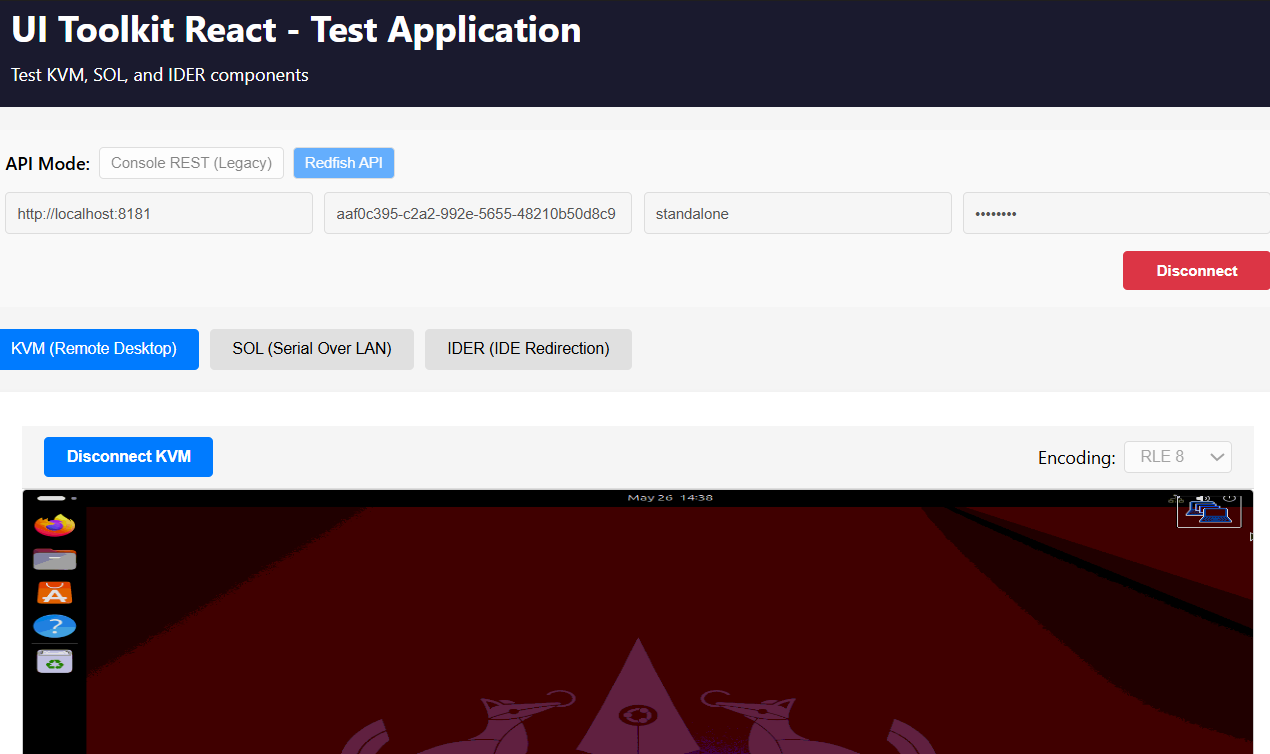
Using UI Toolkit React for KVM and SOL Sessions
Use UI Toolkit React for Redfish-based KVM/SOL UI integration.
What is required for Redfish KVM/SOL:
- Set
.envtoVITE_API_MODE=redfish(instead ofrest). - Enable KVM/SOL services and complete consent flow when required (CCM).
- In Redfish mode, UI Toolkit uses Redfish APIs for session/control operations and automatically fetches the redirection token for KVM/SOL authentication.
Common Use Cases
Use Case 1: Check Power State of All Systems
# Get all systems
$SYSTEMS = curl.exe -s -k -u "${ADMIN_USER}:${ADMIN_PASSWORD}" https://${CONSOLE_HOST}:${CONSOLE_PORT}/redfish/v1/Systems | jq -r '.Members[]."@odata.id"'

# Loop through each system
foreach ($system in $SYSTEMS) {
  Write-Host "System: $system"
  curl.exe -s -k -u "${ADMIN_USER}:${ADMIN_PASSWORD}" "https://${CONSOLE_HOST}:${CONSOLE_PORT}$system" | jq '.PowerState'
  Write-Host "---"
}
# Get all systems
SYSTEMS=$(curl -sk -u "${ADMIN_USER}:${ADMIN_PASSWORD}" https://${CONSOLE_HOST}:${CONSOLE_PORT}/redfish/v1/Systems | jq -r '.Members[]."@odata.id"')

# Loop through each system
for system in $SYSTEMS; do
  echo "System: $system"
  curl -sk -u "${ADMIN_USER}:${ADMIN_PASSWORD}" "https://${CONSOLE_HOST}:${CONSOLE_PORT}$system" | jq '.PowerState'
  echo "---"
done
Use Case 2: Power On All Systems
# Get all systems
$SYSTEMS = curl.exe -s -k -u "${ADMIN_USER}:${ADMIN_PASSWORD}" https://${CONSOLE_HOST}:${CONSOLE_PORT}/redfish/v1/Systems | jq -r '.Members[]."@odata.id"'

# Power on each system
foreach ($system in $SYSTEMS) {
  Write-Host "Powering on: $system"
  curl.exe -s -k -X POST `
    -u "${ADMIN_USER}:${ADMIN_PASSWORD}" `
    -H "Content-Type: application/json" `
    -d '{"ResetType": "On"}' `
    "https://${CONSOLE_HOST}:${CONSOLE_PORT}${system}/Actions/ComputerSystem.Reset" | jq
  Write-Host ""
}
# Get all systems
SYSTEMS=$(curl -sk -u "${ADMIN_USER}:${ADMIN_PASSWORD}" https://${CONSOLE_HOST}:${CONSOLE_PORT}/redfish/v1/Systems | jq -r '.Members[]."@odata.id"')

# Power on each system
for system in $SYSTEMS; do
  echo "Powering on: $system"
  curl -sk -X POST \
    -u "${ADMIN_USER}:${ADMIN_PASSWORD}" \
    -H "Content-Type: application/json" \
    -d '{"ResetType": "On"}' \
    "https://${CONSOLE_HOST}:${CONSOLE_PORT}${system}/Actions/ComputerSystem.Reset" | jq
  echo ""
done
Use Case 3: Get System Inventory
# Get detailed system information for the device in $env:SYSTEM_ID
curl.exe -s -k -u "${ADMIN_USER}:${ADMIN_PASSWORD}" `
  "https://${CONSOLE_HOST}:${CONSOLE_PORT}/redfish/v1/Systems/${SYSTEM_ID}" | jq
# Get detailed system information for the device in $SYSTEM_ID
curl -sk -u "${ADMIN_USER}:${ADMIN_PASSWORD}" \
  https://${CONSOLE_HOST}:${CONSOLE_PORT}/redfish/v1/Systems/${SYSTEM_ID} | jq
Use Case 4: Power Off All Systems
# Get all systems
$SYSTEMS = curl.exe -s -k -u "${ADMIN_USER}:${ADMIN_PASSWORD}" https://${CONSOLE_HOST}:${CONSOLE_PORT}/redfish/v1/Systems | jq -r '.Members[]."@odata.id"'

# Power off each system
foreach ($system in $SYSTEMS) {
  Write-Host "Powering off: $system"
  curl.exe -s -k -X POST `
    -u "${ADMIN_USER}:${ADMIN_PASSWORD}" `
    -H "Content-Type: application/json" `
    -d '{"ResetType": "ForceOff"}' `
    "https://${CONSOLE_HOST}:${CONSOLE_PORT}${system}/Actions/ComputerSystem.Reset" | jq
  Write-Host ""
}
# Get all systems
SYSTEMS=$(curl -sk -u "${ADMIN_USER}:${ADMIN_PASSWORD}" https://${CONSOLE_HOST}:${CONSOLE_PORT}/redfish/v1/Systems | jq -r '.Members[]."@odata.id"')

# Power off each system
for system in $SYSTEMS; do
  echo "Powering off: $system"
  curl -sk -X POST \
    -u "${ADMIN_USER}:${ADMIN_PASSWORD}" \
    -H "Content-Type: application/json" \
    -d '{"ResetType": "ForceOff"}' \
    "https://${CONSOLE_HOST}:${CONSOLE_PORT}${system}/Actions/ComputerSystem.Reset" | jq
  echo ""
done
Use Case 5: Start KVM/SOL Session in ACM Mode
In ACM mode, a typical sequence is: verify state, enable service if needed, generate token, then open KVM/SOL.
# 1) Check current KVM/SOL state
curl.exe -sk -u "${ADMIN_USER}:${ADMIN_PASSWORD}" `
  https://${CONSOLE_HOST}:${CONSOLE_PORT}/redfish/v1/Systems/${SYSTEM_ID} | jq '.GraphicalConsole, .SerialConsole'

# 2) Enable KVM if disabled
curl.exe -sk -X PATCH -u "${ADMIN_USER}:${ADMIN_PASSWORD}" `
  -H "Content-Type: application/json" `
  -d '{"GraphicalConsole":{"ServiceEnabled":true}}' `
  https://${CONSOLE_HOST}:${CONSOLE_PORT}/redfish/v1/Systems/${SYSTEM_ID} | jq

# 3) Enable SOL if disabled
curl.exe -sk -X PATCH -u "${ADMIN_USER}:${ADMIN_PASSWORD}" `
  -H "Content-Type: application/json" `
  -d '{"SerialConsole":{"WebSocket":{"ServiceEnabled":true}}}' `
  https://${CONSOLE_HOST}:${CONSOLE_PORT}/redfish/v1/Systems/${SYSTEM_ID} | jq

# 4) Generate redirection token for KVM/SOL session startup
curl.exe -sk -X POST -u "${ADMIN_USER}:${ADMIN_PASSWORD}" `
  -H "Content-Type: application/json" `
  -d '{}' `
  https://${CONSOLE_HOST}:${CONSOLE_PORT}/redfish/v1/Systems/${SYSTEM_ID}/Actions/Oem/IntelComputerSystem.GenerateRedirectionToken | jq
# 1) Check current KVM/SOL state
curl -sk -u "${ADMIN_USER}:${ADMIN_PASSWORD}" \
  https://${CONSOLE_HOST}:${CONSOLE_PORT}/redfish/v1/Systems/${SYSTEM_ID} | jq '.GraphicalConsole, .SerialConsole'

# 2) Enable KVM if disabled
curl -sk -X PATCH -u "${ADMIN_USER}:${ADMIN_PASSWORD}" \
  -H "Content-Type: application/json" \
  -d '{"GraphicalConsole":{"ServiceEnabled":true}}' \
  https://${CONSOLE_HOST}:${CONSOLE_PORT}/redfish/v1/Systems/${SYSTEM_ID} | jq

# 3) Enable SOL if disabled
curl -sk -X PATCH -u "${ADMIN_USER}:${ADMIN_PASSWORD}" \
  -H "Content-Type: application/json" \
  -d '{"SerialConsole":{"WebSocket":{"ServiceEnabled":true}}}' \
  https://${CONSOLE_HOST}:${CONSOLE_PORT}/redfish/v1/Systems/${SYSTEM_ID} | jq

# 4) Generate redirection token for KVM/SOL session startup
curl -sk -X POST -u "${ADMIN_USER}:${ADMIN_PASSWORD}" \
  -H "Content-Type: application/json" \
  -d '{}' \
  https://${CONSOLE_HOST}:${CONSOLE_PORT}/redfish/v1/Systems/${SYSTEM_ID}/Actions/Oem/IntelComputerSystem.GenerateRedirectionToken | jq
If using UI Toolkit React in Redfish mode, you do not need to call GenerateRedirectionToken manually; the toolkit fetches and uses the token automatically.
Use Case 6: Start KVM/SOL Session in CCM Mode
In CCM mode, consent is required before redirection token generation.
# 1) Request KVM consent and submit the user-provided 6-digit code
curl.exe -sk -X POST -u "${ADMIN_USER}:${ADMIN_PASSWORD}" `
  -H "Content-Type: application/json" -d '{}' `
  https://${CONSOLE_HOST}:${CONSOLE_PORT}/redfish/v1/Systems/${SYSTEM_ID}/Actions/Oem/IntelComputerSystem.RequestKVMConsent | jq

curl.exe -sk -X POST -u "${ADMIN_USER}:${ADMIN_PASSWORD}" `
  -H "Content-Type: application/json" `
  -d '{"ConsentCode":"<kvm-consent-code>"}' `
  https://${CONSOLE_HOST}:${CONSOLE_PORT}/redfish/v1/Systems/${SYSTEM_ID}/Actions/Oem/IntelComputerSystem.SubmitKVMConsentCode | jq

# 2) Request SOL consent and submit the user-provided 6-digit code
curl.exe -sk -X POST -u "${ADMIN_USER}:${ADMIN_PASSWORD}" `
  -H "Content-Type: application/json" -d '{}' `
  https://${CONSOLE_HOST}:${CONSOLE_PORT}/redfish/v1/Systems/${SYSTEM_ID}/Actions/Oem/IntelComputerSystem.RequestSolConsent | jq

curl.exe -sk -X POST -u "${ADMIN_USER}:${ADMIN_PASSWORD}" `
  -H "Content-Type: application/json" `
  -d '{"ConsentCode":"<sol-consent-code>"}' `
  https://${CONSOLE_HOST}:${CONSOLE_PORT}/redfish/v1/Systems/${SYSTEM_ID}/Actions/Oem/IntelComputerSystem.SubmitSolConsentCode | jq

# 3) Generate token and start KVM/SOL UI session
curl.exe -sk -X POST -u "${ADMIN_USER}:${ADMIN_PASSWORD}" `
  -H "Content-Type: application/json" -d '{}' `
  https://${CONSOLE_HOST}:${CONSOLE_PORT}/redfish/v1/Systems/${SYSTEM_ID}/Actions/Oem/IntelComputerSystem.GenerateRedirectionToken | jq
# 1) Request KVM consent and submit the user-provided 6-digit code
curl -sk -X POST -u "${ADMIN_USER}:${ADMIN_PASSWORD}" \
  -H "Content-Type: application/json" -d '{}' \
  https://${CONSOLE_HOST}:${CONSOLE_PORT}/redfish/v1/Systems/${SYSTEM_ID}/Actions/Oem/IntelComputerSystem.RequestKVMConsent | jq

curl -sk -X POST -u "${ADMIN_USER}:${ADMIN_PASSWORD}" \
  -H "Content-Type: application/json" \
  -d '{"ConsentCode":"<kvm-consent-code>"}' \
  https://${CONSOLE_HOST}:${CONSOLE_PORT}/redfish/v1/Systems/${SYSTEM_ID}/Actions/Oem/IntelComputerSystem.SubmitKVMConsentCode | jq

# 2) Request SOL consent and submit the user-provided 6-digit code
curl -sk -X POST -u "${ADMIN_USER}:${ADMIN_PASSWORD}" \
  -H "Content-Type: application/json" -d '{}' \
  https://${CONSOLE_HOST}:${CONSOLE_PORT}/redfish/v1/Systems/${SYSTEM_ID}/Actions/Oem/IntelComputerSystem.RequestSolConsent | jq

curl -sk -X POST -u "${ADMIN_USER}:${ADMIN_PASSWORD}" \
  -H "Content-Type: application/json" \
  -d '{"ConsentCode":"<sol-consent-code>"}' \
  https://${CONSOLE_HOST}:${CONSOLE_PORT}/redfish/v1/Systems/${SYSTEM_ID}/Actions/Oem/IntelComputerSystem.SubmitSolConsentCode | jq

# 3) Generate token and start KVM/SOL UI session
curl -sk -X POST -u "${ADMIN_USER}:${ADMIN_PASSWORD}" \
  -H "Content-Type: application/json" -d '{}' \
  https://${CONSOLE_HOST}:${CONSOLE_PORT}/redfish/v1/Systems/${SYSTEM_ID}/Actions/Oem/IntelComputerSystem.GenerateRedirectionToken | jq
If using UI Toolkit React in Redfish mode, you do not need to call GenerateRedirectionToken manually; the toolkit fetches and uses the token automatically.
If the operator cancels consent, call CancelKVMConsent or CancelSolConsent, then restart the consent flow.
Error Handling
Common HTTP Status Codes
| Status Code | Meaning | Example Scenario |
|---|---|---|
| 200 OK | Successful GET or PATCH | Getting service root, systems collection; enabling KVM or SOL |
| 201 Created | Resource created | Session created; X-Auth-Token and Location headers returned |
| 202 Accepted | Action completed; response includes task details | Power action is performed before the response; body holds a completed Task resource and Location points at it |
| 204 No Content | Success with an empty body | Session deleted (logout) |
| 400 Bad Request | Invalid request body, parameter, or system ID | Invalid ResetType; consent code that is not six digits; system ID that is not a UUID; consent action on an ACM device |
| 401 Unauthorized | Missing or invalid credentials | No authentication provided; expired session token |
| 404 Not Found | Resource does not exist | System ID is a valid UUID but no such device, or the device is registered but unreachable |
| 405 Method Not Allowed | HTTP method not supported | GET on action endpoint |
| 409 Conflict | Device is already in the requested state, or is in transition | ResetType: On sent to a system that is already powered on |
| 500 Internal Server Error | Server-side error | Console could not reach the device over WS-MAN |
Note
A malformed system ID and an unknown system ID produce different statuses: a value that is not a UUID is rejected with 400, while a well-formed UUID that does not match a managed device returns 404. A device that exists in Console but cannot be reached also returns 404, not 503.
Error Response Format
All errors follow the Redfish standard error format:
{
  "error": {
    "@Message.ExtendedInfo": [
      {
        "Message": "The requested resource of type System named 00000000-0000-0000-0000-000000000000 was not found.",
        "MessageId": "Base.1.22.0.ResourceMissing",
        "Resolution": "Provide a valid resource identifier and resubmit the request.",
        "Severity": "Critical"
      }
    ],
    "code": "Base.1.22.0.GeneralError",
    "message": "System not found"
  }
}
The code field is Base.1.22.0.GeneralError for nearly every error; the specific condition is carried by MessageId inside @Message.ExtendedInfo. Message IDs observed from this service include:
| MessageId | Raised when |
|---|---|
Base.1.22.0.InsufficientPrivilege |
Credentials are missing, wrong, or the session token has expired |
Base.1.22.0.ResourceMissing |
The requested system does not exist or is unreachable |
Base.1.22.0.MethodNotAllowed |
The HTTP method is not valid for the resource |
Base.1.22.0.ResourceInUse |
The device is already in the requested state, or is in transition |
Base.1.22.0.InternalError |
Console failed to reach the device over WS-MAN |
Base.1.22.0.Success |
Returned in the success envelope of OEM consent actions |
Base.1.22.0.GeneralError |
Used for validation failures that have no more specific registry entry |
Note
The Base message registry version is tied to the Console release. This build reports Base.1.22.0; a different release may report another version, so match on the suffix (ResourceMissing, InsufficientPrivilege, and so on) rather than on the full string.
Many errors return the literal string None in Resolution, so do not rely on it for guidance.
Example: Invalid Reset Type
curl.exe -sk -X POST `
  -u "${ADMIN_USER}:${ADMIN_PASSWORD}" `
  -H "Content-Type: application/json" `
  -d '{"ResetType": "InvalidType"}' `
  https://${CONSOLE_HOST}:${CONSOLE_PORT}/redfish/v1/Systems/${SYSTEM_ID}/Actions/ComputerSystem.Reset | jq
curl -sk -X POST \
  -u "${ADMIN_USER}:${ADMIN_PASSWORD}" \
  -H "Content-Type: application/json" \
  -d '{"ResetType": "InvalidType"}' \
  https://${CONSOLE_HOST}:${CONSOLE_PORT}/redfish/v1/Systems/${SYSTEM_ID}/Actions/ComputerSystem.Reset | jq
Response: 400 Bad Request
{
  "error": {
    "@Message.ExtendedInfo": [
      {
        "Message": "Invalid reset type: InvalidType",
        "MessageId": "Base.1.22.0.GeneralError",
        "Resolution": "None",
        "Severity": "Critical"
      }
    ],
    "code": "Base.1.22.0.GeneralError",
    "message": "Invalid reset type: InvalidType"
  }
}
The error does not enumerate the acceptable values, so refer to Supported Reset Types when a reset is rejected.
Example: Reset to the Current Power State
Sending a ResetType that matches the state the system is already in is rejected rather than ignored. This is the most common surprise when first exercising the Reset action, because On against a running system looks like a harmless test.
curl.exe -sk -X POST `
  -u "${ADMIN_USER}:${ADMIN_PASSWORD}" `
  -H "Content-Type: application/json" `
  -d '{"ResetType": "On"}' `
  https://${CONSOLE_HOST}:${CONSOLE_PORT}/redfish/v1/Systems/${SYSTEM_ID}/Actions/ComputerSystem.Reset | jq
curl -sk -X POST \
  -u "${ADMIN_USER}:${ADMIN_PASSWORD}" \
  -H "Content-Type: application/json" \
  -d '{"ResetType": "On"}' \
  https://${CONSOLE_HOST}:${CONSOLE_PORT}/redfish/v1/Systems/${SYSTEM_ID}/Actions/ComputerSystem.Reset | jq
Response: 409 Conflict when the system is already powered on
{
  "error": {
    "@Message.ExtendedInfo": [
      {
        "Message": "The change to the requested resource failed because the resource is in use or in transition.",
        "MessageId": "Base.1.22.0.ResourceInUse",
        "Resolution": "Remove the condition and resubmit the request if the operation failed.",
        "Severity": "Warning"
      }
    ],
    "code": "Base.1.22.0.GeneralError",
    "message": "The change to the requested resource failed because the resource is in use or in transition."
  }
}
Check PowerState first and only send a reset that changes it.
Example: Device Unreachable
When Console cannot complete the WS-MAN call to the device, the request fails with 500 and the underlying transport error is surfaced in Message:
{
  "error": {
    "@Message.ExtendedInfo": [
      {
        "Message": "failed to get current boot data: Post \"https://<device-ip>:16993/wsman\": remote error: tls: internal error",
        "MessageId": "Base.1.22.0.InternalError",
        "Resolution": "Resubmit the request.  If the problem persists, consider resetting the service.",
        "Severity": "Critical"
      }
    ],
    "code": "Base.1.22.0.GeneralError",
    "message": "An internal server error occurred."
  }
}
A 500 here points at the device or its AMT TLS configuration, not at your request. Verify the device is online and its AMT credentials and certificate are valid.
Troubleshooting
Common Issues
Issue 1: Connection Refused
Symptom:
curl: (7) Failed to connect to localhost port 8181: Connection refused
Solution:
- Verify server is running:
ps aux | grep console - Check if port is correct:
netstat -tlnp | grep 8181 - Review server logs:
cat logs/console.log - Restart the application
Issue 2: Authentication Failed
Symptom:
401 Unauthorized
{
  "error": {
    "@Message.ExtendedInfo": [
      {
        "Message": "There are insufficient privileges for the account or credentials associated with the current session to perform the requested operation.",
        "MessageId": "Base.1.22.0.InsufficientPrivilege",
        "Resolution": "Either abandon the operation or change the associated access rights and resubmit the request if the operation failed.",
        "Severity": "Critical"
      }
    ],
    "code": "Base.1.22.0.GeneralError",
    "message": "Unauthorized access"
  }
}
Solution:
- Verify credentials in
config.yml - Ensure Basic Auth header is correct:
echo -n "${ADMIN_USER}:${ADMIN_PASSWORD}" | base64 - Check if authentication is enabled in config
- Try with correct credentials:
curl -u "${ADMIN_USER}:${ADMIN_PASSWORD}" ... - If using a session token, confirm it has not expired or been deleted — a
401on a previously working token means the session is gone, so create a new one
Issue 3: Device Not Found
Symptom:
404 Not Found
{
  "error": {
    "@Message.ExtendedInfo": [
      {
        "Message": "The requested resource of type System named 00000000-0000-0000-0000-000000000000 was not found.",
        "MessageId": "Base.1.22.0.ResourceMissing",
        "Resolution": "Provide a valid resource identifier and resubmit the request.",
        "Severity": "Critical"
      }
    ],
    "code": "Base.1.22.0.GeneralError",
    "message": "System not found"
  }
}
Solution:
- List all systems:
curl -sk -u "${ADMIN_USER}:${ADMIN_PASSWORD}" https://${CONSOLE_HOST}:${CONSOLE_PORT}/redfish/v1/Systems | jq - Verify device GUID is correct
- Check if device is added to Console
- Verify device is online and reachable — a device that is registered in Console but not reachable is left out of the Systems collection and returns
404here - If you instead received
400withInvalid system ID: system ID must be a valid UUID, the identifier is malformed rather than unknown. Use the GUID exactly as it appears in the Systems collection
Issue 4: Power Action Fails
Symptom:
500 Internal Server Error
{
  "error": {
    "@Message.ExtendedInfo": [
      {
        "Message": "failed to get current boot data: Post \"https://<device-ip>:16993/wsman\": remote error: tls: internal error",
        "MessageId": "Base.1.22.0.InternalError",
        "Resolution": "Resubmit the request.  If the problem persists, consider resetting the service.",
        "Severity": "Critical"
      }
    ],
    "code": "Base.1.22.0.GeneralError",
    "message": "An internal server error occurred."
  }
}
Solution:
- Check device connectivity
- Verify AMT credentials are correct
- Review backend service logs —
Messagecarries the underlying WS-MAN or TLS error, including the device address and port that failed - Ensure device supports the requested power action
- A
409 Conflictinstead means the system is already in the requested state, or is mid-transition. ReadPowerStateand request a different state - Check if device is in a valid state for the action
Issue 5: KVM or SOL Session Will Not Start
Symptom: GenerateRedirectionToken succeeds but the WebSocket closes immediately, or the consent code is never accepted.
Solution:
- Read the system resource and check the state values described in Understanding KVM and SOL State
- If
KVMStatusorSOLStatusisDisabled, enable the service with a PATCH before generating a token - If
ControlModeisCCM, complete the consent flow first — a token generated whileUserConsentStatusisRequiredorRequestedwill not open a session - If
UserConsentStatusisTimeoutorDenied, cancel and restart the consent flow withCancelKVMConsentorCancelSolConsent - Redirection tokens are short lived. Generate the token immediately before opening the WebSocket rather than reusing an older one
- If
KVMStatusisActive, another session already holds the device. Close it before starting a new one
Port Conflicts
If port is already in use:
# Find process using port 8181
Get-NetTCPConnection -LocalPort 8181 | Select-Object -Property OwningProcess

# Kill the process (replace PID with actual process ID)
Stop-Process -Id <PID> -Force

# Or use netstat to find the process
netstat -ano | findstr :8181
taskkill /PID <PID> /F

# Or use a different port
$env:HTTP_PORT=9090
.\console.exe
# Find process using port ex:8181
lsof -ti:8181

# Kill the process
lsof -ti:8181 | xargs -r kill -9

# Or use a different port
HTTP_PORT=9090 ./console
Additional Documentation Resources
- Console Supported Redfish Open API Specification
- UI Toolkit React (redfish branch)
- UI Toolkit Documentation
- DMTF Redfish Specification
- OData Version 4.0 Specification
For questions or support, please refer to the project documentation or contact the development team.